How to unhide a hidden folder with Folder Guard
If you've used Folder Guard to lock a folder with a password, it's obvious how to unprotect such a folder: just double-click on the folder's icon, enter your password, and the folder would be unlocked. However, what if you have set up the folder to be hidden altogether? In such a case, when you browse your computer, you would not see the folder in the Explorer windows, and there would be no icon to double-click on! So, how to unlock the folder if it's invisible?
The solution is simple: use any of the available methods offered by Folder Guard to pause the protection, and that should make any hidden folders instantly visible:
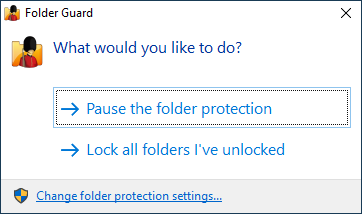
Folder Guard offers several tools to display such a screen:
-
You can pause or resume the protection at any time by running Folder Guard using its Desktop shortcut or Windows Start menu.
-
You may want to set up a hot key to give yourself quick access to the Pause/Resume Protection command by pressing a key combination of your choice.
-
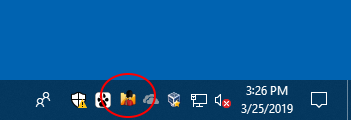
You can also enable the option to display a Folder Guard icon on Windows taskbar next to the clock, and click on that icon to get access to the Resume/Pause Protection command:
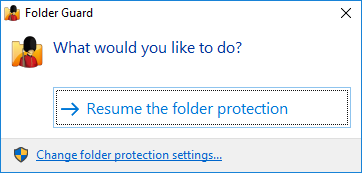
When you are done using the folder, how to hide the hidden folder back? Use any of the same tools listed above, but this time choose to Resume the protection:
Happy computing!
Folder Guard User's Guide • Videos • Download • Purchase
If you want to link to this article, you can use this HTML code: <a href="https://www.winability.com/unhide-hidden-folder/">How to unhide a hidden folder with Folder Guard</a>
More information
- Encryptability vs Folder Guard: which one to choose?
- What people are saying about Folder Guard...
- How to enable or disable test signing mode in Windows
- Folder Guard videos
- A FREE 30-day license is included
- What's new in the new version
- Folder Guard licenses explained
- End User License Agreement (ELUA)
- Emergency Recovery Utility
- How to lock folders and drives with passwords
- How to hide folders and files
- How to unhide a folder hidden with Folder Guard
- How to create a secret folder in Windows 11 and 10
- How to restrict access to Windows Settings
- How to restrict access to Control Panel
- How to set up Folder Guard to stop downloading from the Internet
- Locking access to the external drives with Folder Guard
- How to make Folder Guard recognize network drives
- Preventing installations of specific programs with Folder Guard
- How to restrict access to Task Manager with Folder Guard
- How to restrict access to Microsoft Store app with Folder Guard.
- How to password-protect a USB flash drive
- Always have a backup of your important files
Folder Guard 24.11

User rating:
 4.7 / 5
Buy Folder Guard
from $29.95
Download free trial
More information:
Folder Guard Home Folder Guard Videos Purchase Folder Guard Download Folder Guard Documentation Support
 Stand with Ukraine
Our software:
Folder Guard Encryptability USBCrypt AB Commander MySecretFolder ActiveExit StartFinity IconShepherd SpaceInvestigator SoftDetective TweakUAC
Is WinAbility.com safe?