Hide folders and make files invisible with Folder Guard
Folder Guard makes it easy to protect folders with passwords. However, what if you want to hide a folder completely, to make it invisible for other users of your computer?
It's just as easy to hide a folder with Folder Guard, too. One way is to use the Wizard: first, switch to the Restricted view of the Folder Guard program, and click the Restrict another file or folder link:
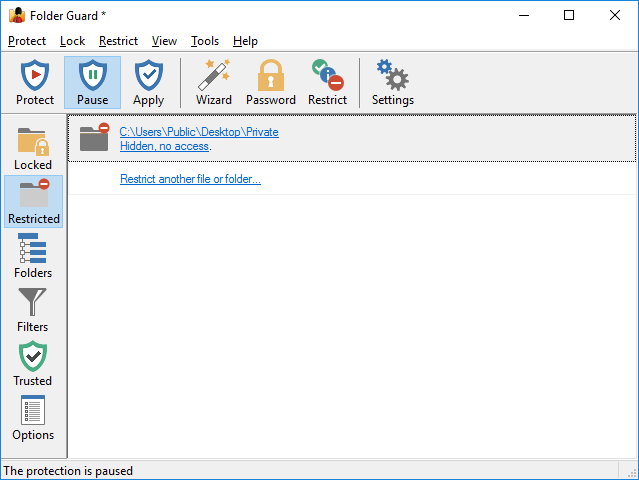
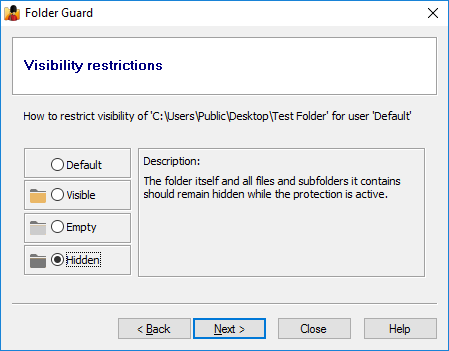
That should start the Wizard, and when its Visibility restrictions page is displayed, select the Hidden option:
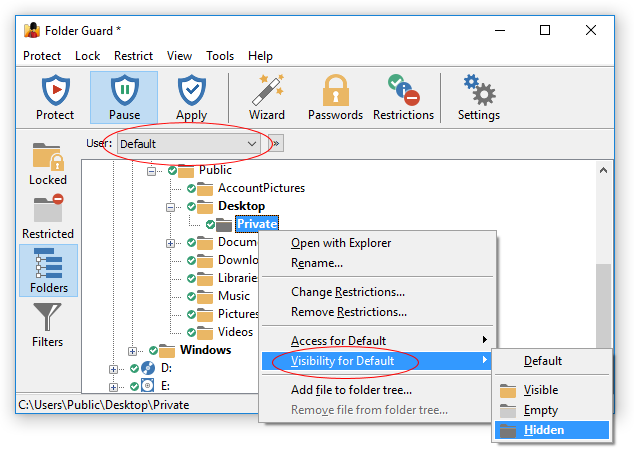
Another method of hiding a folder is with the Folders view of Folder Guard window: select the folder you want to hide in the folder tree and assign the Hidden attribute to it using the right-click menu:
Now apply the changes and resume the protection, if necessary, and try to locate the folder with Explorer or another program: the folder should not be visible in the regular file listings! When you pause the protection the folder should become instantly visible. (You may need to press the F5 key within the Windows Explorer window, to make it refresh the list of folders it shows).
Note that you do NOT need run the main program of Folder Guard to pause or resume the protection: you have several other tools available:
-
You can pause or resume the protection at any time by running Folder Guard using its Desktop shortcut or Windows Start menu.
-
You may want to set up a hot key to give yourself quick access to the Pause/Resume Protection command by pressing a key combination of your choice.
-
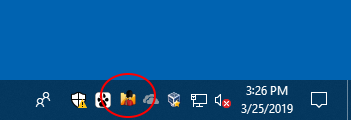
You can also enable the option to display the notification icon on Windows taskbar next to the clock, and click on that icon to get access to the Resume/Pause Protection command:
And more! Please feel free to download the fully functional evaluation version and give it a try. If you don't like it, use Windows Control Panel to uninstall it: no strings attached.
Folder Guard User's Guide • Videos • Download • Purchase
If you want to link to this article, you can use this HTML code: <a href="https://www.winability.com/folder-guard-hide-folder/">Hide folders and make files invisible with Folder Guard</a>
More information
- Encryptability vs Folder Guard: which one to choose?
- What people are saying about Folder Guard...
- How to enable or disable test signing mode in Windows
- Folder Guard videos
- A FREE 30-day license is included
- What's new in the new version
- Folder Guard licenses explained
- End User License Agreement (ELUA)
- Emergency Recovery Utility
- How to lock folders and drives with passwords
- How to hide folders and files
- How to unhide a folder hidden with Folder Guard
- How to create a secret folder in Windows 11 and 10
- How to restrict access to Windows Settings
- How to restrict access to Control Panel
- How to set up Folder Guard to stop downloading from the Internet
- Locking access to the external drives with Folder Guard
- How to make Folder Guard recognize network drives
- Preventing installations of specific programs with Folder Guard
- How to restrict access to Task Manager with Folder Guard
- How to restrict access to Microsoft Store app with Folder Guard.
- How to password-protect a USB flash drive
- Always have a backup of your important files
Folder Guard 26.3

User rating:
 4.7 / 5
Buy Folder Guard
from $29.95
Download free trial
More information:
Folder Guard Home Folder Guard Videos Purchase Folder Guard Download Folder Guard Documentation Support
 Stand with Ukraine
Our software:
Folder Guard Encryptability USBCrypt AB Commander MySecretFolder ActiveExit StartFinity IconShepherd SpaceInvestigator SoftDetective TweakUAC
Is WinAbility.com safe?