TweakUAC for Windows Vista
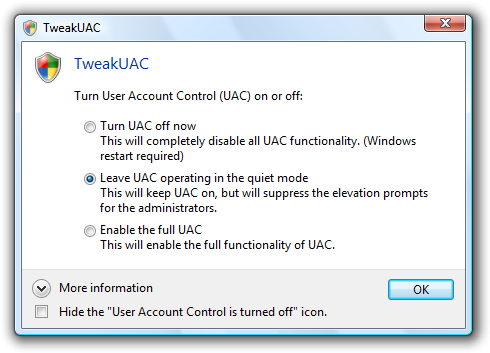
 TweakUAC™ gives you more power over the Windows User Account Control (UAC) settings. In addition to enabling or disabling the UAC, TweakUAC also allows you to select the "quiet" mode for UAC. In the "quiet" mode, the security of UAC is fully enabled, except that when you use Windows as an administrator, you will not see the usual UAC prompts to approve actions that require the administrative rights.
What is UAC?
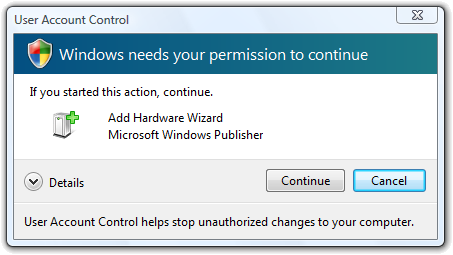
UAC is short for User Account Control, the security technology available in Windows Vista, and Windows 7, 8, 10, and 11 that keeps programs from performing privileged operations without special approval from the administrator. Here is an example of a typical message displayed by UAC when you attempt to run a program that requires special permissions:
Am I at risk if I enable the "quiet" mode of UAC?
If you rely solely on UAC to keep you safe from malware, then yes, your risk increases and in such a situation you should not use the "quiet" mode. However, if you use an anti-virus program, have the firewall enabled, and keep your Windows updated regularly, then UAC popups become more of a nuisance without adding much security. Any malware should be stopped by the anti-virus and firewall. If it's reached the point of asking you to confirm its execution, it's already too late!
Should I disable UAC completely?
No, that's not a good idea. When enabled, UAC makes available the protected mode of Internet Explorer, reducing the attack surface significantly should you come across a rogue web site. It also forces legitimate programs to behave well by restricting their privileges. If you disable UAC completely, you increase the chance that some system setting becomes corrupted due to an error in one of the "good" programs you use.
Do I need TweakUAC if I use Windows 7, 8, 10, or 11?
Unlike Windows Vista, Windows 7, 8, 10, and 11 come with a built-in UAC control panel that lets you reduce the amount of UAC messages shown. You can use that Control Panel instead of Tweak UAC, if you prefer. Or, use TweakUAC if you find its way of handling UAC settings better. It's all up to you!
Does TweakUAC work with 64-bit Windows?
Yes, TweakUAC works with both 32-bit and 64-bit versions of Windows.
I've enabled the "quiet" mode but now Vista is showing a balloon message telling me that UAC is disabled!?
That's how Microsoft designed Vista: when UAC is in the quiet mode, it incorrectly reports that UAC is OFF:
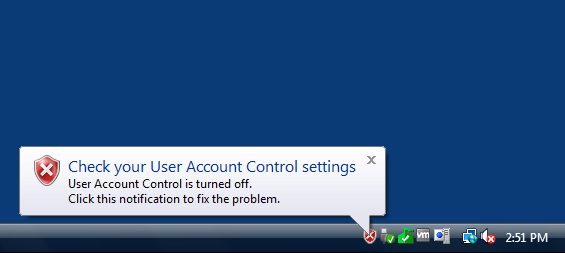
You can verify that UAC is ON by trying to enable the Protected Mode of Internet Explorer: it can only be enabled if UAC is ON.
To stop the red shield icon from bothering you, use the Hide the "User Account Control is turned off" icon option at the bottom of the TweakUAC window. If you check that box, Windows Vista should stop displaying the alert. Note that you may need to log off and then log back on to Windows in order for the new setting to take effect. Also note that this option is only displayed if you use Windows Vista; it's not shown on the Windows 7, 8, 10, or Windows 11 computers, because they do not display the red shield alert when you enable the quiet mode of UAC.
How much is TweakUAC?
It's FREE!
 Stand with Ukraine