How to repair desktop icons in Windows 7 with AB Commander
Sometimes something happens and Windows starts displaying wrong icons on the desktop. For example, you might have upgraded an application and the new version came with a new and improved application icon, but you still see the old icon on the Desktop. Or, a blank or damaged icon image appears where a perfectly good icon was displayed before. Does this sound familiar?
The most common reason for the problem with the icons is the corruption of the Windows icon cache. If you don't know what icon cache is, it's a special file that Windows uses to keep copies of each icon handy. When Windows needs to draw an icon, it uses the copy from the cache rather than retrieving the icon image from the original application file. It makes Windows draw the icons much faster.
NOTE: The following procedure should work for Windows 7, Vista, and XP. With the release of Windows 8, Microsoft changed the rules of the game: the icon cache is no longer stored in the IconCache.db file described below. Read more: How to repair the icon cache in Windows 11, 10, 8
The location of the icon cache file depends on the version of Windows that you have. In Windows 7 and Vista, the icon cache file is:
C:\Users\User\AppData\Local\IconCache.db
In Windows XP the icon cache file is:
C:\Documents and Settings\User\Local Settings\Application Data\IconCache.db
So, what to do if the icon cache file became corrupted or damaged, or if Windows did not replace a copy of an icon in the icon cache with a new image of the icon for some reason? The solution is simple: you need to force Windows to rebuild its icon cache! The easiest ways of doing that is by deleting the IconCache.db file. If that file is missing, Windows will build it from scratch. However, deleting this file is tricky: it turns out that Windows keeps a copy of this file in the RAM memory, and if you delete it, with will create a new copy of this file from it's RAM copy, without refreshing the icon images!
To prevent Windows Explorer from recreating the old icon cache file, you can do the following:
- If you have not done so already, make Windows display the hidden files and folders. To do so, choose the Folder options command from the Tools menu of AB Commander (or open it from Windows Control Panel), select the View tab, and change the option:
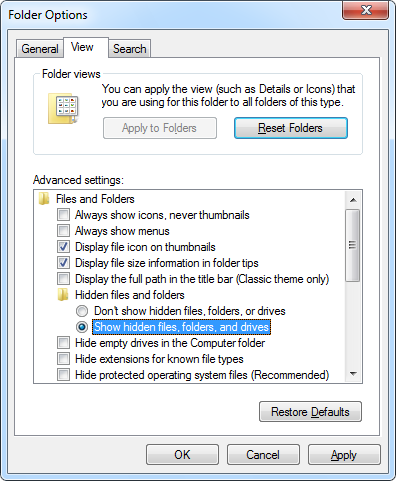
If you don't like Windows displaying the hidden files and folder, you can change this option back after completing the steps below.
- Use AB Commander to navigate to the folder where the IconCache.db file is located (see above for the possible locations):
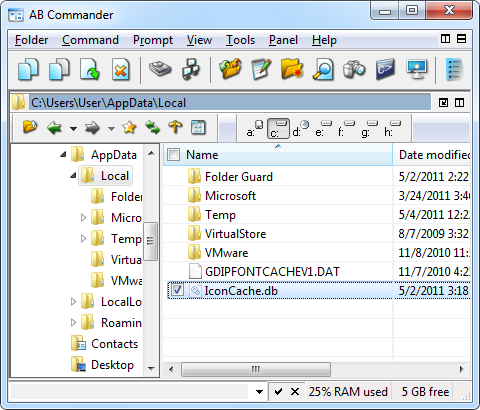
(If you have just enabled the Show hidden files option, you may need to press F5 in AB Commander to refresh is window and make the hidden files and folders to appear in the file listings.) Delete the IconCache.db file, and keep AB Commander window open, do not close or minimize it, you will need it a bit later.
- Now end the Windows Explorer process. To do that, start Windows Task Manager (by, for example, right-clicking on an empty space of Windows taskbar and selecting Start Task Manager from the menu). Select the Processes tab and right-click on explorer.exe in the list. Finally, select End Process from the menu:
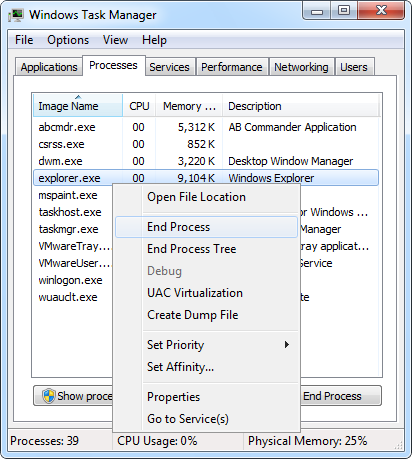
The icons on your desktop will disappear, but don't panic, they will be back in a minute!
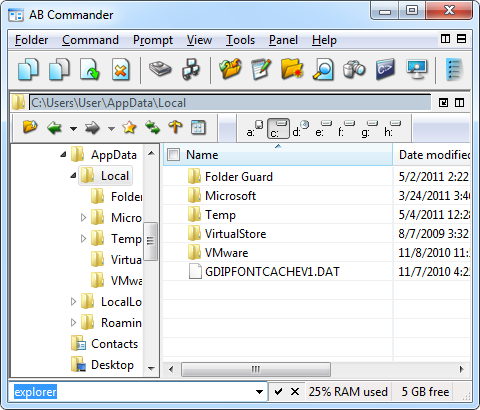
- Finally, restart the Explorer process. To do that, switch to AB Commander window, enter explorer in its launch box, and press OK:
 Take control of your files and folders with AB Commander file manager for Windows 11, 10, 8, 7.
User rating:  4.8 / 5
Purchase
or
download a free trial.
Read more...
(You could also start Explorer using the File - New Task (Run) command of Windows Task Manager.) Your desktop icons should be back.
The above procedure should force Windows to recreate its icon cache file from scratch. If you don't see the IconCache.db file right away, don't worry, it will appear after you log off and log back on to (or restart) Windows.
UPDATE: If you use Windows 8 (or newer) the above procedure may not work. In such a case, you need to use a different procedure. Read more: How to repair the icon cache in Windows 11, 10, 8
AB Commander User's Guide • Download • Purchase
If you want to link to this article, you can use this HTML code: <a href="https://www.winability.com/repair-windows-desktop-icon-cache/">How to repair desktop icons in Windows 7 with AB Commander</a>
More information
- What people are saying about AB Commander...
- A FREE 30-day license is included
- What's new in the new version
- End User License Agreement (EULA)
- Space Investigator
- Using DiffMerge as the external tool of AB Commander
- Is "Wipe the content" the same as "Secure Delete"?
- How to start programs elevated from a batch file
- How to make elevated programs recognize network drives
- How to disable hibernation
- How to set up Notepad++ as the external text editor for AB Commander
- Integrating AB Commander with Universal Viewer
- How to repair Windows desktop icons with AB Commander
- How to show drive letters first in AB Commander and Windows Explorer
- Organize your photo library with the Rename tool of AB Commander
- How to move images from an Android device to PC
- How to synchronize images between a PC and an Android device
- Using junction points to change the iTunes backup folder location
- Always have a backup of your important files
AB Commander 25.6

User rating:
4.8 / 5
Buy AB Commander
from $49.97 $39.97
Download free trial
More information:
AB Commander Home Purchase AB Commander Download AB Commander Documentation Support
 Stand with Ukraine
Our software:
Folder Guard Encryptability USBCrypt AB Commander MySecretFolder ActiveExit StartFinity IconShepherd SpaceInvestigator SoftDetective TweakUAC
Is WinAbility.com safe?