Understanding Folder Guard |
|
Understanding Folder Guard |
|
The main purpose of Folder Guard is to restrict access to files and folders that you think should not be accessible to other users who might log in to your computer. Folder Guard offers several methods of controlling access to files and folders:
You can assign a password to a folder and that would allow to open the folder only if someone knows the password. You can protect different folders with different passwords, and you can add several different passwords to the same folder, each password authorizing the full or read-only access to the folder and the files within. You can also create separate passwords to be used by the network users, who connect to the shared folder over the network. (Note: the password-protection of the shared folders is only available if Folder Guard is registered with a business license key.)
You can restrict the visibility of and access to folders without giving them individual passwords. You can specify which Windows users should or should not see the folder, or have the full, read-only, or no access to the folder and the files within. When you need the full, unrestricted access to your system, you could pause the protection (by entering the Master password), and make all files and folders fully accessible, as if Folder Guard were not present on the computer. Having finished the work, resume the protection, and the folders would become restricted again for users who might log in to your computer while you are away.
With this method, you can set up how specific programs may or may not access the whole classes of files. For example, with a proper filter, you can deny access to any EXE and/or DLL file if it is launched from any external drive attached to your computer, and thus prevent users from running programs from the external drives. (Note: the filters are only available if Folder Guard is registered with a business license key.)
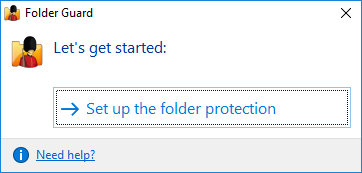
In order to start protecting files and folders with Folder Guard, first you need to specify which files and folders you want to be protected, and how exactly you want to protect them. When you run Folder Guard for the first time after installing it, it prompts you to set up the protection settings:
If you had previously set up the protection and want to change it, you can use the following screen instead:
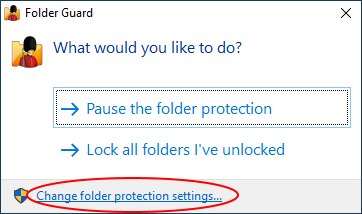
Use the Set up or Change folder protection link, and the main configuration program of Folder Guard will open, letting you password-protect folders, hide folders, and set up other restrictions. When you are done setting up the restrictions, Folder Guard will ask you to resume the protection of files and folders:
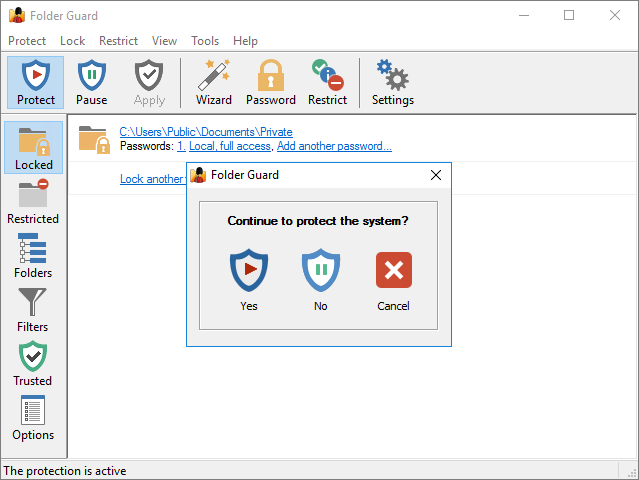
If you want the protection to take effect, select Yes. (If for some reason you don't want the folders to become protected right away, select No; you can resume the protection later on, when needed.)
If you've chosen to resume the folder protection, you can continue using your computer, as usual, and Folder Guard will be protecting your files and folders quietly in the background. For example, if you've selected a folder to be hidden, it will hide that folder from Windows Explorer and other programs and keep it invisible. If you've set up a password for a folder, it won't allow the folder to be opened until you enter the correct password, and so on. If you run Folder Guard again while the folder protection is in effect, it will display the following prompt:
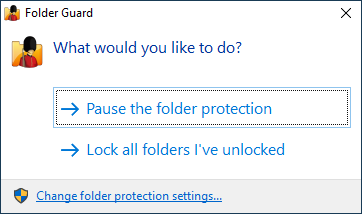
You can choose to Pause the folder protection: if you do, Folder Guard will ask you for the Master password, and then temporarily stop protecting the files and folders. You should be able to see and open the protected files and folder without any restrictions, as if Folder Guard was not present on your computer at all. When you are done working with the protected files and folders, you can run Folder Guard again, and it will prompt you to resume the protection:
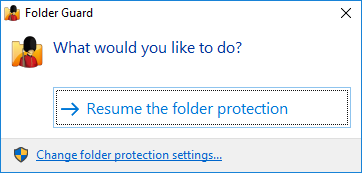
In addition to pausing or resuming the protection, you can also click on the Change folder protection settings link, and it would open the main configuration program of Folder Guard, letting you add or remove the protection from the files and folders, and change other protection settings.

 Copyright © 2026, WinAbility® Software Corporation
  . All rights reserved