Protecting folders with passwords |
|
Protecting folders with passwords |
|
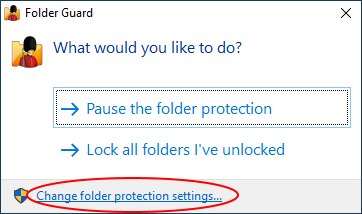
To protect a folder with a password, run Folder Guard and choose the Change folder protection settings link:
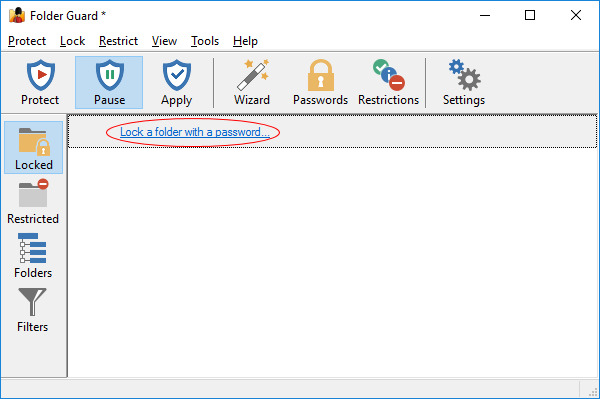
When the Folder Guard application opens, click on the Lock a folder with a password link:
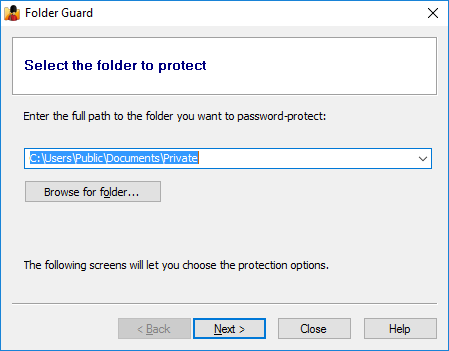
This should prompt you first to specify the folder you want to protect, which you can select by pressing the Browse for folder button:
On the next screen, select the Lock with a password option and press the Choose the password button to specify the password:
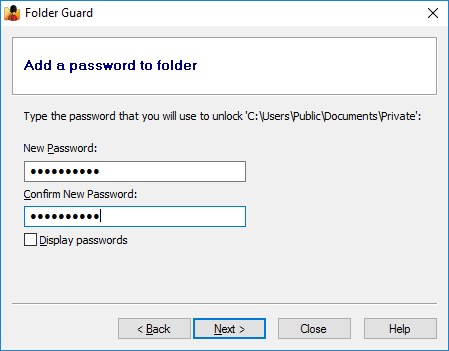
Press Next and review the options offered for this password:
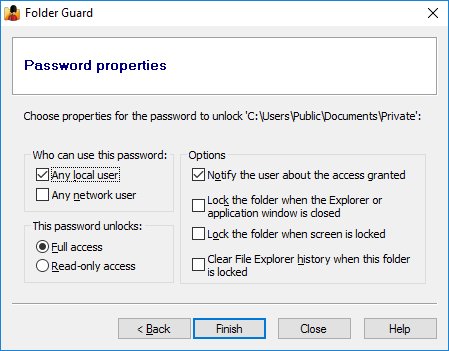
Adjust the password properties, if needed. Press Finish and that's it! The password-protected folder will appear in the list of the protected objects in the Folder Guard window. Press the Protect button on the toolbar to actually start protecting the folder (or, if the protection is already in effect, press the Apply button to apply the new settings.)
Now let's see the password protection in action: run Windows Explorer and navigate to the folder you've just protected. Instead of the files in the protected folder, you should see the Unlock button.
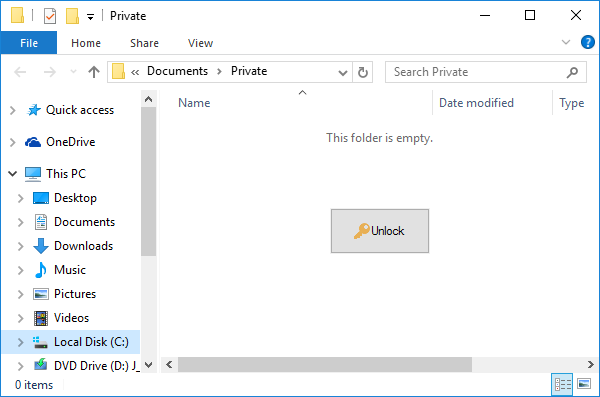
Press the Unlock button and a prompt for the password should appear on the screen:
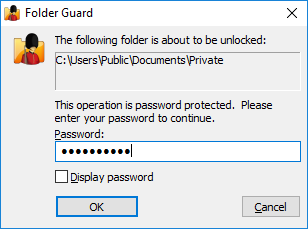
Enter the password and the folder should unlock and you can now open the files and/or subfolders it contains, as usual:
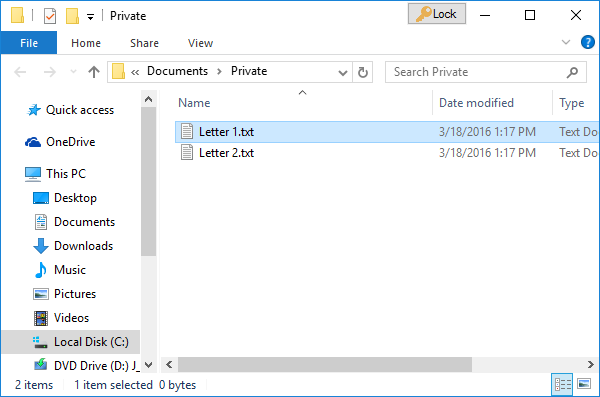
See the Lock button in the title bar of the Explorer window on the image above? It appears there right after you unlock the folder. If you press it, you will be asked to confirm the action:
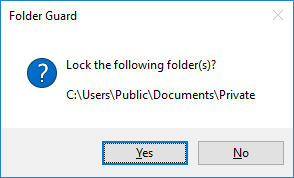
You can also close the Explorer or application window that you used to unlock the folder. If you have previously chosen the Lock the folder when the Explorer or application window is closed option on the Password properties screen for this password, then the folder would be locked immediately after the window is closed. If such option was not selected, then you would see a confirmation message shown above.
Note that the Lock button is only added to the window that you used to unlock the folder. If you open a new Explorer window and navigate to the previously unlocked folder, the Lock button will NOT appear on its title bar. In such a case, Folder Guard offers several other methods to lock the folder when you no longer need it:
- Right-click on the protected folder in an Explorer window and choose Lock from the shortcut menu. (This command is only available if you have previously chosen the option to add the Lock and Unlock commands to Windows shortcut menu.) This method works with any Explorer or Open/Save As window, in addition to the original window that you used to unlock the folder.
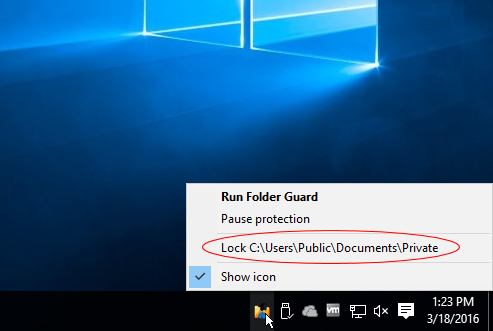
- Right-click on the Folder Guard notification icon and choose the Lock command from its menu: (This command is only available if you have previously chosen the option to show the notification icon of Folder Guard.)
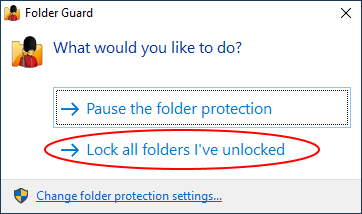
- Run Folder Guard application and press the Lock all unlocked folders button to lock all previously unlocked folders, if any:
- Run FG32.exe (or FG64.exe) with the appropriate command line option.
- If you've selected the Lock the folder when the screen is locked option on the Password properties screen for this password, then the folder would be locked automatically when the screen is locked. (Any method for locking the screen would work: you could press the Win+L keys or you could set up a screensaver to lock the screen after a timeout.)
Yes, you can unlock the folder from the applications that use the standard Open and Save As windows to locate the files:
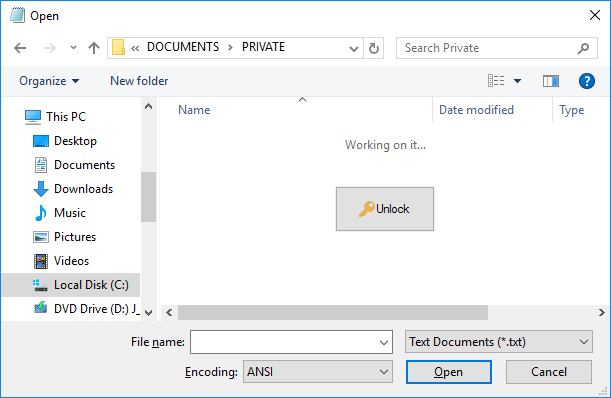
Note that the Unlock or Lock buttons may not appear if the application is started As Administrator. To unlock a folder in such a case, use the right-click (shortcut) menu for the protected folder. (This method is only available if you have previously chosen the option to add the Lock and Unlock commands to Windows shortcut menu.)
Yes, each folder can have up to 4 different passwords, and each such password can have different properties. For example, one password could unlock the full access to the folder, and another password could provide only the read-only access. This way, you could give the first password to people who you trust to make changes to the files in the protected folder, and give the second password to the users who could view the files and documents there, but not save the modifications back to the protected folder.
In the Folder Guard window, right-click on the folder in question and choose the Set passwords command from the context menu. Select the password you want to remove, and press Next. This should open the screen that you can use to not only change the text of the password, but also to delete that specific password:
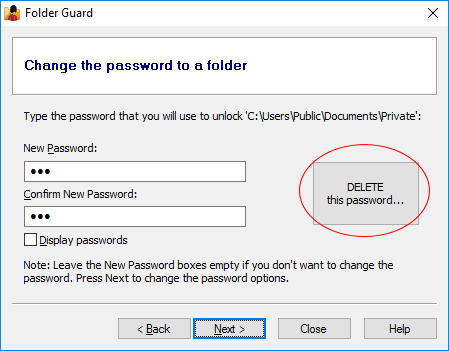
Or, if you've decided that you no longer want the folder to be protected by Folder Guard at all, right-click on the protected folder, and choose the Remove passwords command from the context menu. This will remove all passwords from the selected folder and make it fully accessible. (Don't forget to press the Apply button on the toolbar to apply the changes.)
No, if the parent folder already has a password, its subfolders cannot have passwords, too. Likewise, you cannot create a password for the parent folder of a folder that is already password-protected, or restricted otherwise.
No, only folders can be protected with passwords, sorry. The files and programs can still be protected with restrictions and filters, or by blocking specific programs from starting.
Yes, if you've selected the Any network user option for the password, then any user connecting to the shared folder via a LAN network can unlock the folder by entering that password. The locking and unlocking methods in such a situation are different, though.
Yes, you can. For example, if you have password-protected a local folder C:\Test, and the drive C: is shared, then you can unlock this folder by opening it on the same computer using the network path \\MYPC\C\Test (assuming the name of your computer is MYPC and the C: drive is shared using the name C). Note that this only applies to local computer, where the folder is shared from. If you want to unlock the shared folder from other computers, you need to enable the Any network user option as described above.
When you unlock a password-protected folder, it opens access to the folder only for you, the user who actually unlocked it. Other users must enter the password themselves in order to gain access to the password-protected folder.

 Copyright © 2026, WinAbility® Software Corporation
  . All rights reserved