The Master Password |
|
The Master Password |
|
When you run Folder Guard for the first time, it prompts you to choose the Master password:
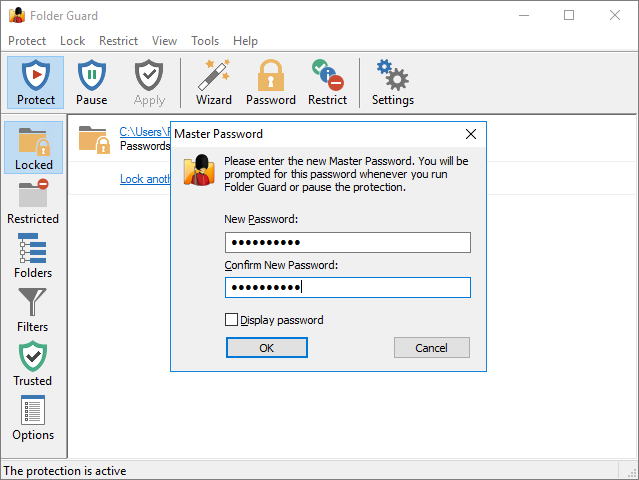
You will need to enter this password every time you decide to pause the folder protection, or to change the protection settings of your computer. You also need to enter this password when you upgrade or uninstall Folder Guard, again, to stop unauthorized users from removing Folder Guard from your computer without your permission:
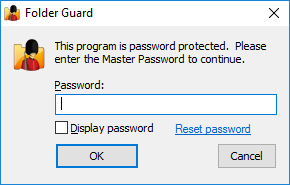
If you forget the Master password, click on the Reset password link to perform the Emergency Recovery procedure (that is, to erase the password and let you log in to Folder Guard).
Note that Folder Guard uses several other passwords, as well, such as the folder passwords that you can use to password-protect specific folders. If you forget any of such passwords, simply run Folder Guard and use its commands to set up new passwords for the folders.
When choosing the passwords, keep in mind that the length of a password must be between 1 and 64 characters. Any characters are allowed, including spaces and punctuation. The passwords are case sensitive: If, for example, you have chosen the word Apple as the password, Folder Guard will not accept the words APPLE or apple as the valid passwords.
Note that the passwords used by Folder Guard are stored on your computer in the hashed form (based on the SHA256 secure hash algorithm), or encrypted with the AES encryption. In other words, it is practically impossible for someone to discover the text of the passwords by analyzing the contents of your hard drive.

 Copyright © 2026, WinAbility® Software Corporation
  . All rights reserved