Using the filters |
|
Using the filters |
|
Note: The functionality described here is only enabled for the customers who have purchased the professional or another business license for Folder Guard software. It is not available for the home, personal license customers.
Folder Guard lets you control access not only to individual files and/or folders, but also to the whole classes of files. For example, if you need to set up some general access rights to the Excel files, you can use Folder Guard to create a filter that would apply to the Excel files only (that, to the files with the extensions .xls and .xlsx ), and then assign the desired access attribute to such a filter, that would make the attribute to apply to any Excel file, no matter where it is located.
Let us explain in more detail. A filter is a set of rules that defines which files it applies to, according to the names of the files, the folders they are located in, and programs that are accessing the files. You may define several different filters, or have no filters at all, depending on how exactly you want your computer to be protected. Each filter can have an access attribute, such as no access, read-only, or full access applied to it.
After you have set up the filters and enabled the protection, Folder Guard begins to monitor how different programs are accessing the files on your computer. Whenever a program attempts to access a file, Folder Guard uses the list of filters you've set up to determine whether the file name, the path of the folder where the file is located, and the path of the program that is accessing the file match any of the filters. If Folder Guard finds such a filter, it uses its attribute (full access, read-only, or no access) to allow or deny access to the file.
IMPORTANT: the filters may override other restrictions you might have set up with Folder Guard. For example, if you password-protected a folder on a drive that's restricted with a filter, you may not be able to unlock such a folder with a password the usual way, because the filter prevents access to the whole drive. Or, if a folder is restricted with the no access attribute, but a filter with the read-only attribute applies to a file in that folder, then the read-only access would be effective for that particular file. This may create the impression that the restrictions or the password-protection of Folder Guard does not work properly, while in fact it is the filters that interfere with other restrictions. To troubleshoot such problems try to temporarily disable the filters (by setting their Access attribute to Default) and see if that enables other restrictions to work properly.
Folder Guard comes with a pre-loaded set of filters (discussed below). To see the currently defined filters, use the command View - Filters (or press the Filters button in the left-hand View bar):
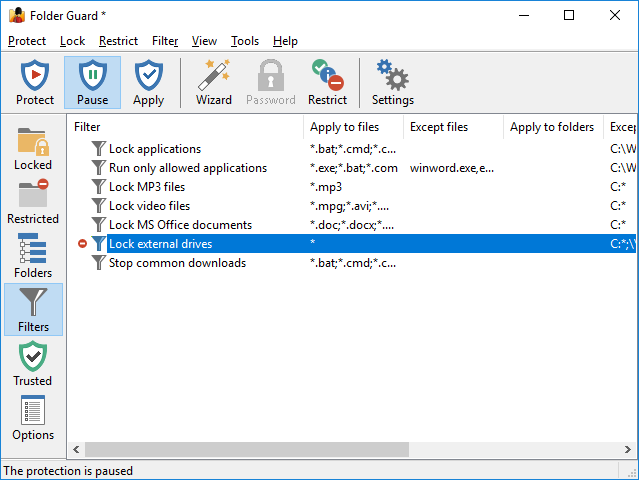
You can create new filters or modify the existing ones using the commands on the Filter menu. (This menu appears on the menu bar only when the filter view is active). In complex situations, such as when several different programs need to be restricted or allowed access to specific file types, you may find the option to produce a file system event log useful for troubleshooting.
Note that only the access attributes may be applied to the filters; the visibility restrictions cannot be applied to the filters.
Whenever a program attempts to access a file, Folder Guard takes a note of the following information:
Folder Guard then scans the list of filters, in the order they are listed in the Folder Guard window, and attempts to match the noted information with each filter that has a non-default access attribute for the user currently logged on to the computer. The match occurs if all of the following conditions are met:
If all three conditions above are met, Folder Guard uses the access attribute assigned to the filter to allow or deny access to the file. If even one condition listed above is not met, Folder Guard skips the filter and continues to search for the matching filter until the end of the list is reached. If no matching filter is found, Folder Guard checks whether you have restricted the file in some other way, using the Restricted or Folders views or Folder Guard.
Note: The Trusted Programs list has a higher priority than the list of the filters. That is, a trusted program can access all files unconditionally, even if you have set up a filter that restricts access to certain files for that program.
All masks are case-insensitive. For example, *.exe, *.Exe, and *.EXE all have the same effect. When describing the masks of the filters, the following terms are used:
|
|
If a mask must include spaces, it should be enclosed in double quotes. For example, to specify all files that begin with white paper, use the mask "white paper*", including the quotes.
Several masks may be separated with spaces, semicolons (;), or commas (,). For example:
*.txt;"white paper*";*.EXE,*.doc
Any file that has the file name extension txt, or exe, or doc, or if its file name begins with white paper, would have matched such a composite mask.
|
If a mask must include spaces, it should be enclosed in double quotes. For example, to specify all files that reside in subfolders of C:\Program Files, use the mask "C:\Program Files\*", including the quotes.
Note that some applications and Windows components use the short (a.k.a. MS-DOS-style) names for the folders. (For example, C:\PROGRA~1 refers to the same folder as C:\Program Files.) To protect access from such applications, add a mask to match the short name of the folder as well (for example, C:\PROGRA~1\* ).
Several masks may be separated with line breaks, spaces, semicolons (;), or commas (,). For example:
"C:\Program Files\*", C:\PROGRA~1\*, C:\Windows*
|
Folder Guard comes with several pre-configured filters, some of which are discussed below. You can use them as they are, or modify them to better suit your needs, delete them or create the new ones. If you don't want the filters to be used, you can reset their attributes with the Attributes - Reset command.
This filter applies to the common executable and script files located in any folder other than the Windows folder (which is usually C:\Windows), or the Program Files folder (which is usually C:\Program Files), or the folder where Folder Guard is installed (to allow you access to Folder Guard!). Any subfolder is excluded from this filter.
You may find this filter useful if you don't want the users of the computer to run arbitrary programs (for example, by downloading them from the Internet or by running them from the removable drives).
If you enable this filter (by assigning the No access attribute to it), it would prevent running any program unless it's a built-in Windows program or a program you have installed in the default location (C:\Program Files). An attempt to run an executable file or a script would result in the Access Denied message.
The users would still be able to download other files or use the removable drives to copy other types of files and documents, because this filter would not apply to such files.
Note that some programs get installed in folders other than C:\Windows or C:\Program Files. If you have such programs, you need to add their folders to the [Except for Folders] list as well. Also note that the list of the executable and script file extensions is not complete: your computer may have other file extensions designated for use as the scripts; if so you need to add them to the Apply to files list.
Keep in mind that such protection is not attack-proof: someone could attach the removable disk to another (unprotected) computer and rename the executable file so that it would have an extension not on the restricted extensions list. The attacker could then attach the disk to the protected computer, copy the file to the C:\Windows folder, and then rename it back. After that, the file would no longer be restricted from executing. If you want to be protected from such an attack, you may want to completely restrict access to the external drives, using another filter described below.
Suppose you don't want other users to run any programs other than MS Word and Excel. You could use the Run only allowed applications filter that would apply to all program files (that is the files with extensions .exe, .com, and .bat), but not to the files winword.exe (MS Word) and excel.exe (MS Excel). Also, this filter would not apply to the files located in the folders that begin with C:\Windows (since these folders contain system files, which should always be accessible in order for Windows to work properly). The programs located in the folder "C:\Program Files\Folder Guard" would also be exempt from this filter, since you want to be able to run Folder Guard files to change or disable the protection as needed.
Now, if you assign the no access attribute to this filter for a particular user, that user would not be able to run any programs other than MS Word and Excel, and the programs located in the Windows folder, or its subfolders.
This filter applies to the MP3 files (*.mp3) located on any drive other than the main one (C:).
You may find this filter useful if you want the users of the computer to play the MP3 files it contains, but not to copy the MP3 files to the removable drives.
If you enable this filter by assigning the No access attribute to it, it would prevent opening or saving an MP3 file to any drive other than C:. At the same time, it would not restrict the MP3 files already located on the C: drive and allow the users to listen to them, modify their properties, etc. If someone were to attach a removable drive to computer, s/he would not be able to copy the MP3 files from the C: drive to the removable drive. (Copying the MP3 files from the removable drives would be restricted, too.)
Note that this filter does not affect files other than MP3: the users would be able to freely copy them to and from the removable drives, as usual.
What if at some point you need to copy some MP3 files to an external drive (for example, to create a backup of your music collection)? Just run Folder Guard and pause the protection. When done, resume the protection back.
This filter works in the same way as the Lock MP3 files filter described above, only it applies to the video files (*.mpg, *.avi, and others). If you assign the No access attribute to this filter, it would prevent users from copying your video files to/from the external drives but allow playing such files that already exist on the C: drive.
This is another example of a filter that prevents copying of the common Microsoft Office documents to/from the removable drive, while allows their use if they are already present on the C: drive.
The Except for locations box for this filter contains the following:
C:*;\\*;*:\$RECYCLE.BIN
That is, it would apply to any file or folder that is not located on the C: drive, and is not located on a network (that is, any folder that has a UNC path that starts with a double backslash, such as \\server\share), and also it would not apply to the Recycle Bin folder located on any drive.
This means that if you enable this filter by assigning the No access attribute to it, it would prevent opening or copying any file to/from any drive other than C:. If, instead, you assign the Read-only attribute to the filter, it would allow opening or copying files from the removable drives, but prevent copying files to them.
Note that if the Recycle Bin folder were not excluded from the filter, Windows would show a message about a corrupted Recycle Bin on any drive other than C:.
This filter applies to the common executable and script files, such as *.bat, *.dll, *.exe, *.msi, and others. If you assign the Read-only attribute to such a filter, the user would be able to use the existing executable files and scripts, but an attempt to install a new one (or modify an existing such file) would be denied by Folder Guard. This filter would effectively stop users from downloading or installing new executable files.
To allow the expected modifications and updates to proceed without intervention from Folder Guard (such as those performed by Windows Update), make sure that the SYSTEM user is added to the Trusted Users list, and also that the updating program is added to the Trusted Programs list. Adding your anti-virus software to the Trusted Programs list is also a good idea, to allow it to have an unrestricted access to all files and folders.

 Copyright © 2026, WinAbility® Software Corporation
  . All rights reserved