Folder Guard Overview |
|
Folder Guard Overview |
|
Thank you for choosing Folder Guard!
Folder Guard is a computer security program that lets you password-protect, hide, or restrict access to folders, files, and programs. It can also restrict access to the Control Panel commands, prevent downloading of programs from the Internet, control user access to the external drives, and more.
CAUTION: Folder Guard is a powerful tool that should be used with care. Please take time reading this User's Guide before protecting access to your important documents! Always have a backup of your important files  .
.
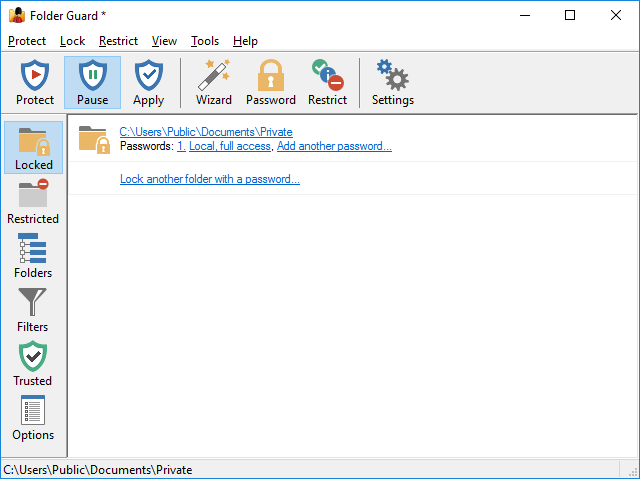
With Folder Guard you can:
You can protect virtually any "real" folder with a password, allowing only the authorized users to open the protected folder. You can protect an unlimited number of folders, each with its own password, or you can use the master password of Folder Guard to unlock them all at once.
You can set up Folder Guard to make your private folders invisible (or appear to be empty) to other users. The folder would be hidden from virtually any program, including Windows Explorer, Office, MS-DOS programs, etc.
With Folder Guard, you can designate specific files or folders to be read-only. The users would be able to open and view such files, but they would not be able to save the modified versions back to the protected folders.
You can set up passwords for the shared folders to be used by the network users to obtain the full or read-only access to the shared folder, depending on the password they enter. (Note: This feature requires a business license purchase.)
With Folder Guard you can control access to folders located not only on the local drives, but also on the network drive and folders, shared by other computers on your network.
You can use configure Folder Guard to allow or deny access to the removable drives, restricting the user's ability to run or install unauthorized programs on your computer from the external drives. (Note: This feature requires a business license purchase.)
Folder Guard protects your files without encrypting them. It means that there is no danger of losing your documents if you lose your encryption key: with Folder Guard all your files remain intact, without modification of any kind.
You can choose a specific keyboard combination as the hot key of Folder Guard, to be able to quickly pause and resume the protection of your computer. Of course, the "hot key" is protected with your password, too, only you can use it!
You can set up Folder Guard to operate in the stealth mode, to hide its own files and shortcuts from being seen by other users.
If you forget your password, or experience other problems, use the Emergency Recovery Utility (available for free download from our web site) to restore access to your protected computer.
You will find Folder Guard indispensable if you share your computer with others and you don't want any changes made to your files. Or, if you allow your kids to play games on your system from time to time, and want to be sure that everything will be OK when they finish. Or, if you don't want your parents to see some of your files. Or, if you are a network administrator and your users give you a headache messing the files up all the time. However you use Windows, you may have concerns about the security, privacy, or confidentiality of your files. And now you have a single, effective solution - Folder Guard.
If you have not done so yet, visit our web site now and download a free no-strings-attached-no-obligation evaluation version of Folder Guard and see for yourself how Folder Guard can be of use to you:
Folder Guard helps you protect files and folders from the prying eyes of most Windows users. This protection, however, is not intended to withstand attack by anyone who has an unrestricted physical access to the computer or the administrator rights, as well as sufficient time and expertise.

 Copyright © 2026, WinAbility® Software Corporation . All rights reserved