The main window of Folder Guard |
|
The main window of Folder Guard |
|
In order to protect files and folders with Folder Guard, you need to use its main window to specify which files and folders you want to be protected, and how exactly you want to protect them:
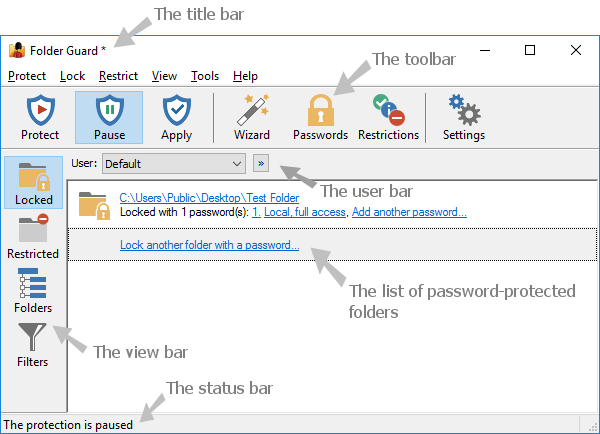
The main window contains the following areas:
Like the title bars of most other programs, it shows the name of the application. If you've made changes to the current configuration that have not been saved or applied yet, a star character * is displayed next to the name.
The toolbar offer quick access to the frequently used commands of Folder Guard.
The user bar is only visible if you specifically set it so using the View - User bar command. You can use it to select the Windows user for which to set up the restrictions.
You can use the View bar to quickly switch between the different views of Folder Guard.
The Locked button selects the view of the folders that you have protected with passwords.
The Restricted view lists the files and folders that you have restricted without using the passwords.
The Folders view shows the drives and folders that your computer has as a tree-like structure.
The Filters view displays the list of the filters.
The Trusted view displays the list of trusted users and programs that you want to bypass the protection of Folder Guard.
The Blocked view displays the list of programs that you want to be blocked from starting while the protection of Folder Guard is active.
The Options view displays the list of various options that affect the way Folder Guard performs the protection of files and folders.
Status bar is used to display the information messages.

 Copyright © 2026, WinAbility® Software Corporation
  . All rights reserved