Protecting files and programs |
|
Protecting files and programs |
|
With Folder Guard, you can restrict access to (and visibility of) not only folders, but also of individual files and programs. While you can't protect them with passwords, you still can hide them, or make them inaccessible, by setting the appropriate restrictions just as you would for the folders.
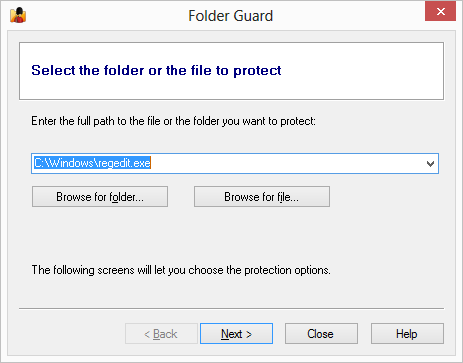
For example, suppose you want to protect access to Registry Editor, a powerful Windows tool that can be used to change many internal settings of Windows and applications, but can also create a big disaster if used improperly. You probably don't want other users to be able to use it without your permission. To begin, start the Wizard of Folder Guard, just like when you were protecting folders, but this time use the Browse for file button to select the file you want to protect. In case of Registry Editor, its file name is regedit.exe, and it is located in the C:\Windows folder:
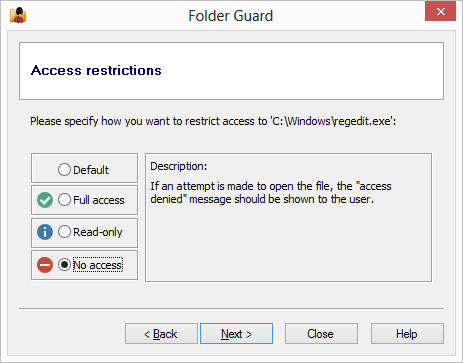
Press Next on the following page, and then leave the default visibility attribute selected, which would not affect the visibility of the file regedit.exe (and leave it visible, as before). On the last page, however, select the No access attribute to apply to this file:
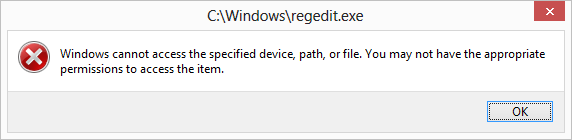
Now resume the protection, and try to run Registry Editor. Instead of allowing to opening, Windows should display a message similar to the following:
What if you yourself want to use Registry Editor? Just run Folder Guard and pause the protection! When you are done using Registry Editor, resume the protection again. Yes, it's that easy.
When protecting programs, be careful not to protect access to some system file used by Windows, because doing so may cause Windows not to work properly. For example, do not restrict access to the file explorer.exe, because this file is used by Windows not only to browse your computer, but also to display your desktop! If you don't want users to browse certain folders, protect the folders themselves, rather than Windows Explorer.
Keep in mind that if you want to restrict access to a program or a file that you usually open via a shortcut, then you should protect the target file, not the shortcut. If you only restrict access to the shortcut, then users would still be able to open the file or run a program directly, bypassing the shortcut.

 Copyright © 2026, WinAbility® Software Corporation
  . All rights reserved