Stopping the Virtual Encrypted Disk |
|
Stopping the Virtual Encrypted Disk |
|
When you are done working with the encrypted files located inside of the Virtual Encrypted Disk, you need to stop the Virtual Encrypted Disk, that is, return it into the state in which its contents is inaccessible to anyone who does not know your password.
USBCrypt offers several methods of stopping the Virtual Encrypted Disks. The fastest one is via the system tray icon:
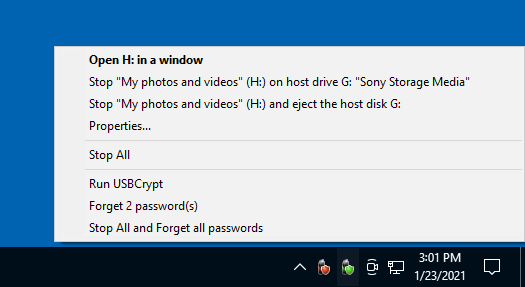
When you right-click on the icon, a menu is displayed that contains a few commands, one of which is "Stop Virtual Encrypted Disk". When you choose this command, USBCrypt attempts to stop the Virtual Encrypted Disk. It usually takes just a second or two, and if there are no files in use that are located in the Virtual Encrypted Disk, it stops and you can see the result in the "balloon" message above the USBCrypt icon:
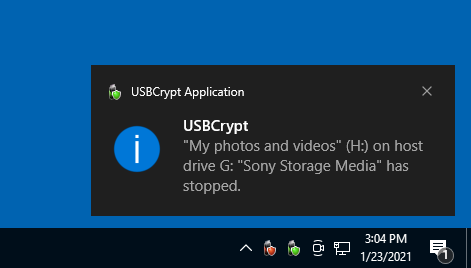
However, if some file is still in use, you may see the following message instead:
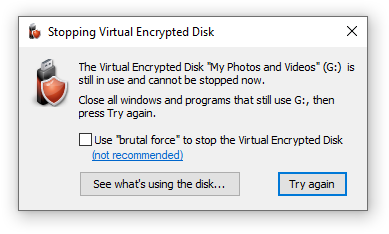
If you see this message, the first thing to try is to do what it tells: close any program that might still be using files off the Virtual Encrypted Disk, including any Explorer windows that might be displaying the contents of the Virtual Encrypted Disk, then press Try again.
If you are not sure which programs are still using the Virtual Encrypted Disk, press the Show what's using the disk button and it should open a popup listing the processes that still have files open on the encrypted disk, such as this:
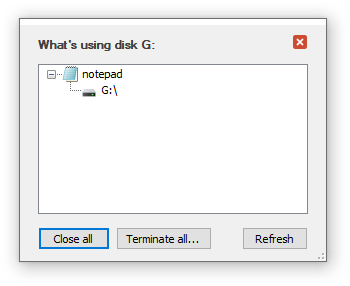
You can use this information to close the listed applications, as you normally do, usually by closing their windows. If for some reason the application does not close normally, you can right-click on each process and choose to close or terminate it. Or, press the Close all button to make USBCrypt to try to close all listed processes. If some of them refuse to close, you can choose to Terminate them instead. However, use these tools only as the last resort, as they can result in a system instability. The preferred way is to close each application normally.
After closing the listed processes, press the Try again button to try to stop the Virtual Encrypted Disk again. If the same message reappears, it might be that some system process or a hidden window is still using a file on the Virtual Encrypted Disk. If you are sure there are no windows or programs that you can close to remedy the situation, there are two courses of action you can take:
The safest method is to restart your computer. (Note that putting the computer to sleep and then waking it up may not work, a complete restart may be required). When the computer shuts down, any Virtual Encrypted Disk that might be running before stops unconditionally. When you power up your computer again, the Virtual Encrypted Disk remain stopped, until you start it again by entering the correct password.
If you are in a hurry and don't want to wait for the computer to restart, you can try the brutal force option shown on the screen above. However, this option should be used only if you are sure there are no open files with unsaved changes. If some file happens to have unsaved changes to it, the unsaved changes may be lost when you stop the Virtual Encrypted Disk "brutally".
In any case, after you stop the Virtual Encrypted Disk (normally or "brutally") its contents becomes locked back. All files and folders that the Virtual Encrypted Disk contains at that point become encrypted and completely inaccessible to anyone. The only way to get access to the files stored inside on a virtual Encrypted Disk is to start it again, by entering the correct password.
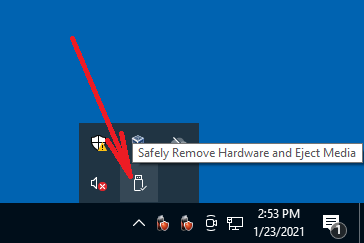
After the Virtual Encrypted Disk has stopped, you can eject the host disk from the computer, if you want, using the standard Safely Remove Hardware and Eject Media icon in the system tray:
If the host drive is removable, you can also use the Stop and eject command on the right-click menu, to achieve the same effect:
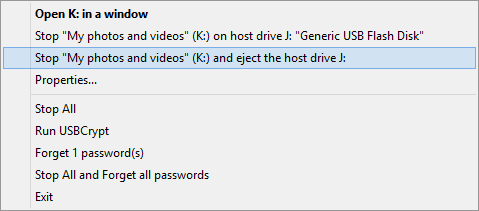
After the drive is ejected, the encrypted files that it contains are stored safely, away from the reach by anyone without the correct password. If you lose the drive, or give it to someone, all the files and folder you've previously put inside of the Virtual Encrypted Disk on it will remain safe.
That describes the typical cycle of the use of an encrypted USB drive: when you need to use the encrypted files, you start the Virtual Encrypted Disk it contains. When you are done working with the files, you stop the Virtual Encrypted Disk.

 Copyright © 2026, WinAbility® Software Corporation
  . All rights reserved