Filter properties |
|
Filter properties |
|
You can use the Filter properties screen to modify the properties of the filters of Folder Guard. To display this screen, select the filter you want to change in the Folder Guard window, and choose Properties command from the Filter menu. (You can also double-click the filter with the mouse or press the Enter key.)
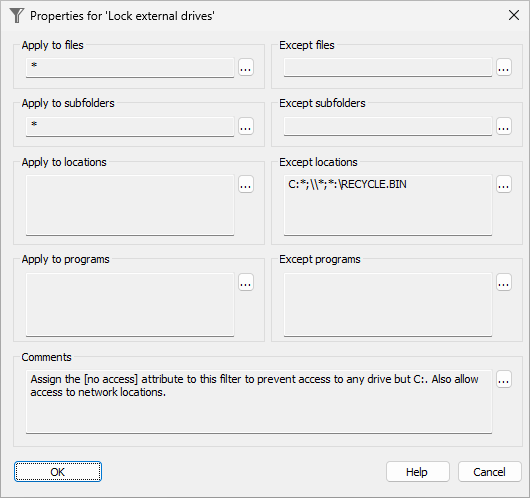
This screen contains the following areas:
A mask that specifies the names of the files to which this filter should apply. If a file has a name that matches the mask entered in this box, this filter would apply to that file, unless the name of the file matches the mask entered in the Except for files box. Empty box means ALL (the same as *), that is any file would match the filter.
The mask that specifies the file names the filter should NOT be applied to. Empty area means NONE, that is no files are excluded from the filter. If a file name matches the mask entered in this area, the filter will not be applied to such a file, even if its file name matches the Apply to files mask.
A mask that specifies the names of the subfolders to which this filter should apply. If a subfolder has a name that matches the mask entered in this box, this filter would apply to that subfolder, unless the name of the subfolder matches the mask entered in the Except for subfolders box. Empty box means ALL (the same as *), that is any subfolders would match the filter.
The mask that specifies the names of the subfolders that the filter should NOT be applied to. Empty area means NONE, that is no subfolders are excluded from the filter. If a subfolder matches the mask entered in this area, the filter will not be applied to such a subfolders, even if its name matches the Apply to subfolders mask.
The mask of the folders to which the filter should apply. Only files and subfolders located in the folders listed in this box would be subject to this filter. Empty area means ALL (the same as *), that is any folder would match the filter.
The folders the filter should NOT be applied to. Empty area means NONE, that is no folders are excluded from the filter. If a file or a subfolder is located in a folder that matches the mask entered in this area, the filter will not be applied to such a file or a subfolder, even if its folder matches the Apply to folders mask.
The list of programs to which this filter should apply. Only files accessed by the programs defined by this mask would be subject to this filter, unless the path matches the mask entered in the Except for programs box. If a program that does not match this mask, the filter would not apply to it. Each program should be specified using the full path to the program file. Empty area means ALL (the same as *), that is files opened by any program would match the filter.
The programs this filter should NOT apply to. Empty area means NONE, that is no programs are excluded from the filter. If the program's path matches the mask entered in this area, the filter will not be applied to the files accessed by that program, even if the program matches the Apply to programs mask.
Any text (such as explanatory notes) may be entered here. The content of this box is not used by Folder Guard when restricting access to files with the filters.
Note: The name of a filter can be changed using the Filter - Rename command. Folder Guard does not use this name while performing the protection; it is just a label to help you identify the filter.

 Copyright © 2026, WinAbility® Software Corporation
  . All rights reserved