First of all, a word of caution: Folder Guard is a powerful tool that should be used responsibly. Using it thoughtlessly, you can inadvertently make your computer inaccessible. For example, it is very easy with Folder Guard to prevent access to the Desktop folder, and make Windows start with a blank screen. To avoid such surprises please review the following:
- Before you begin using Folder Guard, backup
 your entire hard drive or at least the most important documents and the system files. By the way, it is a good practice to backup your files on a regular basis!
- Make sure you know how to start Windows in the safe mode and know how to use the computer in that mode. Folder Guard is not normally enabled at Windows startup in the safe mode, so you should be able to bypass it and correct any problems. (And yes, you can configure Folder Guard to protect your computer even in the safe mode, click here for more information.)
- Use the Tools - Emergency Recovery command of Folder Guard application to create an Emergency Recovery utility and save it onto an external disk, such as a flash drive. This way, if you accidentally lock yourself out of Folder Guard or forget its Master Password, you could use the Emergency Recovery utility to reset the password and let yourself back in.
- Create a practice folder somewhere on your hard disk (such as C:\Test), copy some files into it, and try to protect that folder first. After you get used to the way Folder Guard operates, you may want to start protecting other folders that contain the files and documents you actually want to be protected.
- Do not assign the no access attribute to the C:\Windows folder, unless you know what you are doing, because that will make Windows unable to use its own files! Do not restrict access to the whole C: drive, because other programs located on that drive would stop working! Let us repeat: Folder Guard is a powerful tool that should be used with care.
- If you use Windows 11, 10, 8 (or a later version) with User Account Control enabled, then every time you run Folder Guard you will see a prompt like this:
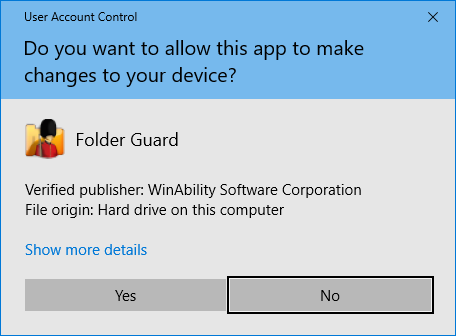
This screen is expected, because Folder Guard needs the administrative access to your computer in order to be able to protect your files and folders. Press Yes to run Folder Guard. However, if you see a different screen with the message "An identified program wants access to your computer" (or a similar message), DO NOT continue! Such a message could indicate that the Folder Guard executable file got corrupted or even worse, that it has been infected with a virus. It is very unsafe to allow such files to run. In such a case, you should first make sure your computer is not infected with viruses, and then visit our web site to download a fresh copy of Folder Guard and reinstall it from scratch.

 Copyright © 2026, WinAbility® Software Corporation . All rights reserved