Options - Misc page |
|
Options - Misc page |
|
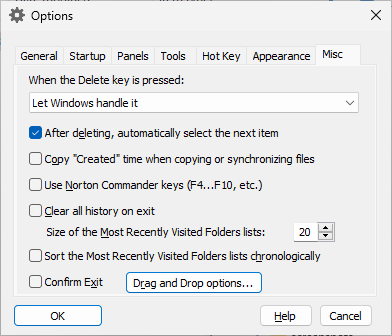
This page is displayed when you select the Misc tab on the Options window. You can use this page to change the miscellaneous options of AB Commander. This page contains the following areas:
These options control the action AB Commander should take when the user presses the Delete key:
If this option is selected, then after you have deleted or moved an item with AB Commander, it attempts to automatically select the next item for you. If this option is cleared, AB Commandes does not attempt to select the next item after the 'delete' or 'move' operations.
Press this button to open the Options for File Operations screen of AB Commander.
Press this button to open the Options for Drag and Drop screen of AB Commander.
If checked, this option causes AB Commander to recognize the keyboard shortcuts used by Norton Commander.
If selected, then the Most Recently Visited Folder (History) lists of AB Commander would have the newly visited folders added to the top of the lists. If not selected, the newly visited folders are placed under their parent folders in the list.
The maximum number of items that AB Commander should retain in the Most Recently Visited Folder (History) lists.
If selected, this option causes AB Commander to delete the contents of its history lists when exiting. Note that it only clears the history maintained by AB Commander, and it has no effect on the history lists maintained by Windows and File Explorer that may appear within AB Commander.
If selected, this option causes a confirmation prompt to be displayed before exiting AB Commander.

 Copyright © 2026, WinAbility® Software Corporation
  . All rights reserved