Using the system tray icon of USBCrypt |
|
Using the system tray icon of USBCrypt |
|
You have probably noticed that after you've created your first Virtual Encrypted Disk, USBCrypt put a small icon on the system tray (also known officially as the "taskbar notification area") for it:
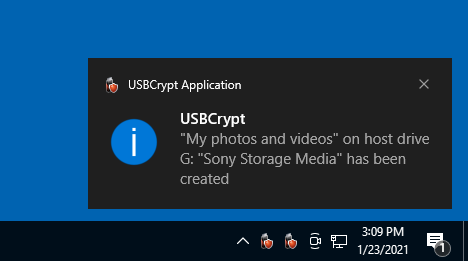
When you eject the removable host drive, the icon disappears, and when you plug the host drive back, the icon re-appears on the system tray again. If you plug in another removable drive with a different Virtual Encrypted Disk on it, USBCrypt will show a separate icon for that drive, too. As you can see, the system tray icons give you a quick visual cue about the drives encrypted with USBCrypt that are currently attached to the computer.
If you don't see this icon, it could be because your computer is configured not to display all icons available. To make it display the USBCrypt icon, right-click on an empty area of the taskbar, choose Taskbar settings from the menu, and then click on the link in the Notification area that reads Select which icons appear on the taskbar. (Theis procedure may be different in your version of Windows).
If you click (or right-click) on such an icon, a shortcut menu appears with commands that depend on the current state of the encrypted drive represented by that icon. If you have not started the Virtual Encrypted Disk off it yet, the menu contains a command to start it:
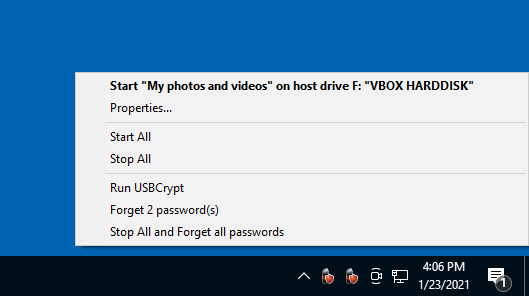
You can use this command to quickly start the Virtual Encrypted disk. It would have the same effect as if you would have run USBCrypt off the Start menu and then selected the host disk to start in the main list. The system tray icon gives a quicker access to that command.
Notice that when you start the Virtual Encrypted Disk, the system tray icon changes its color from red to green. That provides you with another useful visual cue, especially if you have several USBCrypt drives attached to the computer at the same time: by glancing over the system tray icons you can instantly see which encrypted disks are started and which are not.
If you click on the system tray icon for the Virtual Encrypted Disk that's already started, you would see a slightly different shortcut menu:
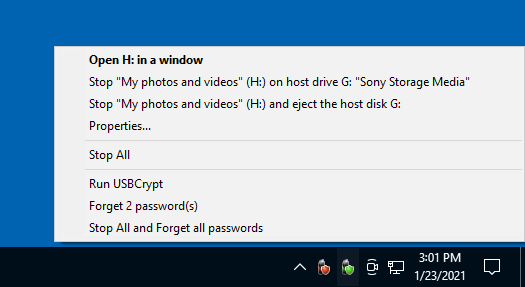
As you can see, this menu gives you a quick access to the command to stop the Virtual Encrypted Disk represented by that icon. Again, the net result is the same as if you would have run USBCrypt main application and chosen the host disk to stop from the list.
The shortcut menu may contains several other commands that you may find useful:
This command appears on the menu if you have several encrypted drives connected to the computer at the same time. This command gives you a quick way to start all Virtual Encrypted Disks from such drives at once, without having to choose the Start command for each encrypted drive individually.
This command appears on the menu if you have started several Virtual Encrypted Disks. When you choose this command, USBCrypt attempts to stop all active Virtual Encrypted disks. Note that if a Virtual Encrypted Disk cannot be stopped because, for example, it still has open files, USBCrypt displays a notification about such a situation and waits for your response before actually stopping it.
This command has the same effect as opening the USBCrypt application using its Desktop icon or Windows Start menu.
This command appears on the menu only if you have previously used the Remember this password for this session command when starting a Virtual Encrypted Disk. You may want to use this command if you no longer want USBCrypt to remember such passwords.
This command appears on the menu if you have previously started one or more Virtual Encrypted Disks or if you have previously used the Remember this password for this session command when starting a Virtual Encrypted Disk. When you choose this command, USBCrypt attempts to stop all active Virtual Encrypted disks and also erases the previously remembered password hashes from the password hash cache. Note that if a Virtual Encrypted Disk cannot be stopped because, for example, it still has open files, USBCrypt displays a notification about such a situation and waits for your response before actually stopping it.
This command appears on the menu if you have previously started one or more Virtual Encrypted Disks or if you have previously used the Remember this password for this session command when starting a Virtual Encrypted Disk. This command has the same effect as the Stop All and Forget all password(s) described above, except that if a Virtual Encrypted Disk cannot be stopped because, for example, it still has open files, USBCrypt unconditionally ("brutally") stops such a disk without displaying a notification and waiting for your response.
This command appears only when you use the encrypted drive on a computer without USBCrypt software installed on it. In such a case, the system tray icon is loaded directly from the removable drive itself. If you decide to unplug the drive, Windows won't let you do that, because it would still be using the USBCrypt files off that drive to display the icon. To be able to eject the drive, you would need to use the Exit command first.
If for some reason you don't want the USBCrypt icon to appear on the taskbar, you can hide it using the Windows Taskbar Settings screen, or by deselecting the appropriate option on the USBCrypt Settings screen.

 Copyright © 2026, WinAbility® Software Corporation
  . All rights reserved