Renaming multiple files |
|
Renaming multiple files |
|
When you import images from a digital camera into a computer, you have probably noticed that more often than not the importing software chooses some not very descriptive names for the files, for example:
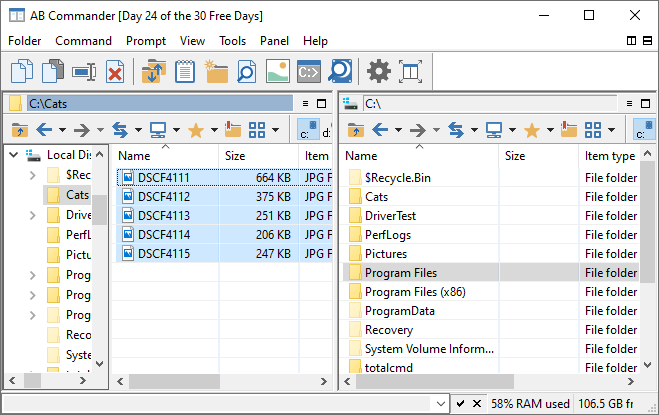
Would not it be better to give your digital images the names of your choosing that better describe what the images are all about?
With AB Commander, you can use the Rename command to quickly rename many files in one step, giving them more descriptive names that make sense to you rather than to your digital camera software.
To do that, first use AB Commander to navigate to the folder when you have imported the digital images or movies, and select the files that belong to the same event. (Remember that you can use the Quick View command of AB Commander to see the images without starting your digital imaging software.) For example, if you want to rename the photos of your cats, select the image files that you want to rename, choose the Rename command, and specify how you want the files to be renamed in the To area:
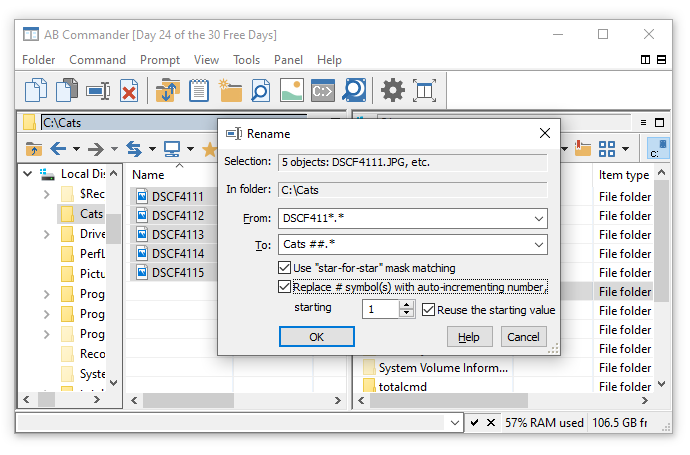
Note the # symbols at the end of the file name in the To area: you can use it as a placeholder for the image number: when renaming the selected files, AB Commander will replace the # symbols with a number, starting with the one you've specified, incrementing it automatically when renaming the next file. (Of course, for this to work, the Replace # symbol(s) with auto-incrementing number option must be selected.)
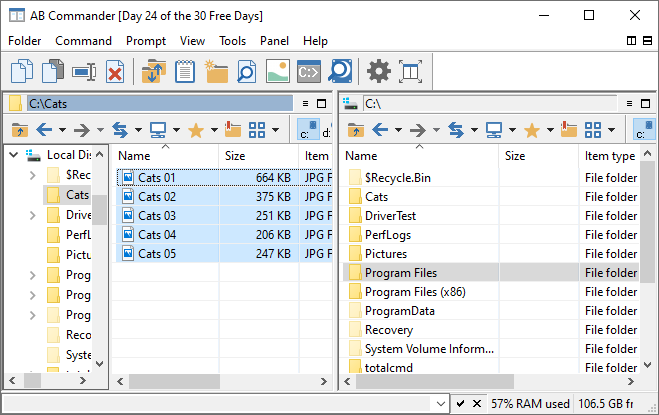
Repeat this procedure for the other images taken during different parts of your vacation and soon your image collection will be nicely organized and easily navigated.

 Copyright © 2026, WinAbility® Software Corporation
  . All rights reserved