Synchronize |
|
Synchronize |
|
AB Commander includes a built-in file synchronizer that you can use to perform a one-way synchronization of the contents of the folder shown in the passive panel (the outdated folder) with the contents of the folder shown in the active panel (the up-to-date folder):
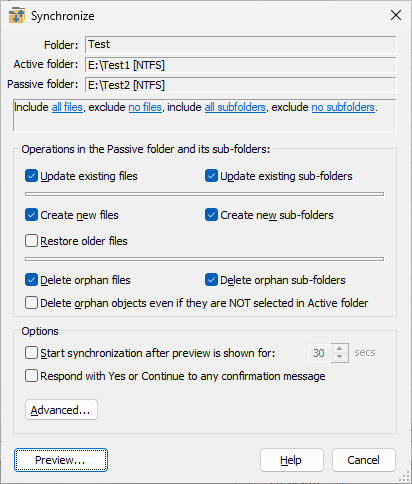
This window is displayed when you choose the Synchronize command from the Tools menu and select the internal synchronizer. You can use this window to set up the synchronization settings. This window contains the following areas:
Displays the path to the folder currently opened in the active panel. This folder is supposed to contain the up-to-date set of files.
Displays the path of the folder currently opened in the passive panel. This folder is supposed to contain the outdated set of files.
You can use this area to restrict the set of files and/or subfolders that should be subject to the synchronization. For example, if the active and passive folders contain a mixture of files of different types, but you only want to synchronize the image files that have the file name extension JPG, then you could specify the include files mask as *.JPG, and all other files would be ignored during the synchronization, as if they were not present at all. Note that the exclude masks take precedence over the include masks.
If selected, this option causes AB Commander to copy the newly created files from the active to the passive folder. If this option is not selected, then the files that don't already exist in both the active and the passive folders will not be synchronized.
If selected, this option causes AB Commander to copy the newly created sub-folders (and all files they might contain) from the active to the passive folder. If this option is not selected, then the subfolders that don't already exist in both the active and the passive folders will not be synchronized.
If selected, this option causes AB Commander to synchronize the files that already exist in both the active and the passive folders. If the passive folder contains older versions of the files from the active folder, they will be replaced with their newer versions from the active folder. If this option is not selected, then the files that exist in both the active and the passive folders will not be synchronized.
If selected, this option causes AB Commander to synchronize the sub-folders that already exist in both the active and the passive folders. If the passive folder contains older versions of the files from the active folder, they will be replaced with their newer versions from the active folder. If this option is not selected, then the subfolders that exist in both the active and the passive folders will not be synchronized.
This option has the effect opposite to the Update files option: you can use it to restore the older versions of the files, if for some reason you want to discard the updates made to them since the last backup. If selected, this option causes AB Commander to synchronize the files that already exist in both the active and the passive folders: if the passive folder contains newer versions of the files from the active folder, they will be replaced with their older versions from the active folder. If this option is not selected, then the files that exist in both the active and the passive folders will not be synchronized.
If selected, this option causes AB Commander to delete those files from the passive folder, which do not exist in the active folder (the orphan files). If this option is not selected, such files will not be deleted from the passive folder.
If selected, this option causes AB Commander to delete those sub-folders (and all files they might contain) from the passive folder, which do not exist in the active folder (the orphan sub-folder). If this option is not selected, such sub-folders will not be deleted from the passive folder.
If this option is selected, it causes any file or folder that does not exist in the active folder (but not in its subfolders) to be deleted from the passive folder.
If selected, this option makes AB Commander start the synchronization automatically after displaying its Ready to Synchronize window for the specified number of seconds. If this option is not selected, then AB Commander will start the synchronization only after you give an explicit command, by pressing the Synchronize button on the Ready to Synchronize window.
If this option is not selected, then in certain situations Windows may ask you to confirm a file operation, such as to overwrite or delete an existing file, etc. If such situations are expected, you may want to select this option and Windows should confirm such prompts automatically for you.
Press this button to review or change several advanced options that affect the operation of the Synchronize command:.
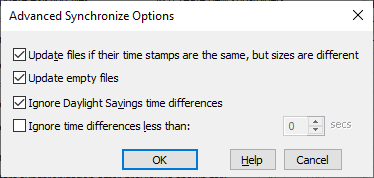
If selected, this option causes AB Commander to synchronize the files that already exist in both the active and the passive folders that have the same last modification times, but different file sizes. Such a situation can occur, for example, after you use the Resize Images command: while resizing or rotating the image files, it preserves their time stamps. Select this option to make sure that such image files get synchronized properly.
If selected, this option causes AB Commander to synchronize the files that are empty (that is, their file size is zero). As a result, the time stamps for the destination files will be updated to match the time stamps of the source files. If this option is not selected, then ABC ommander will skip the zero-size files and not update their time stamps in the passive folder.
If selected, this option causes AB Commander to ignore the difference of exactly 3600 seconds (1 hour) in the last modification time of the files that have the same name and treat such files as if they have been modified at the same time. You may want to select this option if your computer is configured to adjust its clock automatically when entering and leaving the Daylight Savings time period.
If selected, this option causes AB Commander to ignore the specified difference in the last modification time of the files that have the same name and treat such files as if they have been modified at the same time. You may want to use this option if you are storing the copies of the files on a server, and the server for some reason changes the last modification time of the files by a few seconds or a fraction of a second.
Press this button to cause AB Commander to analyze the files and folders in both the active and the passive folders, prepare the list of objects that require synchronization, and display such a list in a Ready to Synchronize window for your review:
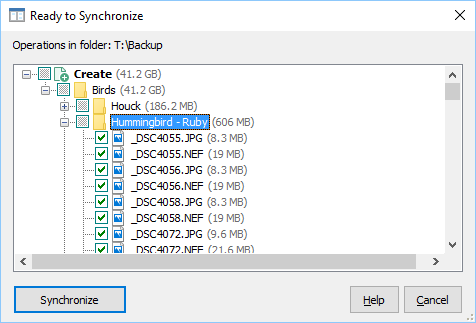
Note that while this window is displayed, no actual synchronization is performed yet, and no files or folders have been copied, updated, or deleted. You can review the proposed operations listed in the Delete, Create, and/or Update groups to see exactly which the files and sub-folders are going to be synchronized. You can exclude some of the file and/or sub-folders from the synchronization by clearing the check marks displayed next to each item in the list. Also, while comparing the files and folders, AB Commander skips some system files and folders (such as the Recycle Bin and System Volume Information folders) and excludes them from synchronization automatically for you.
Note that each file has its size displayed next to the file name. For each folder, the size displayed includes the cumulative size of all files and subfolders that belong to that folder.
When you press the Synchronize button on the Ready to Synchronize window (or, if you selected the Auto-start the synchronization... option and the specified number of seconds has passed), the actual synchronization process starts. First, AB Commander verifies that it has the appropriate access rights to the source and destination files that need to be synchronized. If it discovers, for example, that one of the files that need to be updated is locked by the operating system, it displays such information in a separate Synchronization Errors window for your review, before starting to delete or copy any files:
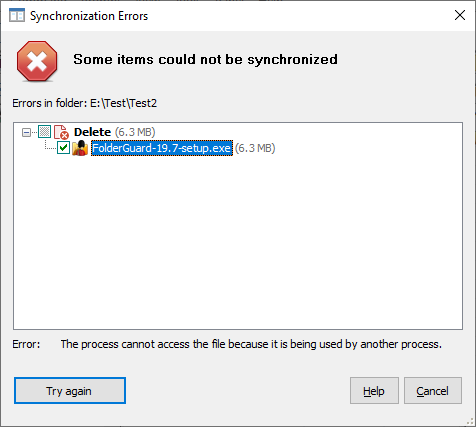
Note, however, that not all such error conditions can be determined in advance: some errors only manifest themselves when the actual file operation is attempted. Also, if an error happens while the synchronization is in progress, it may prevent other items from synchronizing successfully. If you encounter the synchronization errors, we recommend to always repeat the synchronization, to make sure that all files and subfolders get synchronized properly.

 Copyright © 2024, WinAbility® Software Corporation
  . All rights reserved