Options - Panels page |
|
Options - Panels page |
|
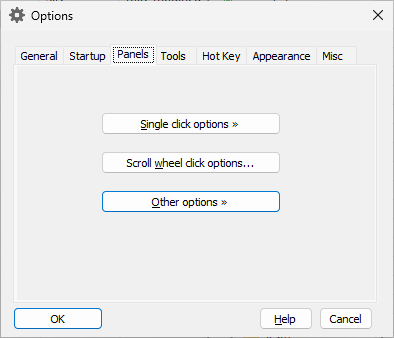
This page is displayed when you select the Panels tab on the Options window. You can use this page to customize various aspects of operation of the panels of AB Commander. This page contains the following areas:
Opens a menu with options which control what happens when you single-click an item in a file panel with the mouse. The menu contains the following options:
If selected, this option causes AB Commander to select a folder or a file after you single-click on it in one of the panels. To open the item, you must double-click on it (or press Enter).
If selected, this option causes AB Commander to navigate to a folder or open a file after you single-click on it in one of the panels.
If selected, this option causes AB Commander rename a file or a folder after you single-click on it. If this option is not selected, you must press the F2 key or use the Rename command on the Command menu to rename files or folders. Note: this option is enabled only when the Select on single click option above is selected.
If selected, this option causes AB Commander to underline the items as you move mouse over them. Note: this option is enabled only when the Open on single click option above is selected.
If selected, this option causes AB Commander to underline all the items that can be open by clicking them with the mouse, no matter where the mouse pointer currently is. Note: this option is enabled only when the Open on single click option above is selected.
Opens the Scroll wheel click options screen that you can use to specify the actions to be taken by AB Commander when you click with the scroll wheel of the mouse.
Opens a menu with additional options that you can use to change the appearance and behavior of the file panels of AB Commander:
If selected, this option causes AB Commander to select a file or folder in the panel whenever you keep the mouse pointer over the item longer than one second. If this option is not selected, you must click on an item (or use the arrow keys) to select it.
If selected, this option causes AB Commander to display the full row of the selected file or folder using a distinct color. If this option is not selected, only the name of the selected file or folder is shown in the distinct color.
If selected, this option causes AB Commander to use a grey background for the columns of the file panels other than Name, and also for the folder bars. This option only has effect if the light mode is currently in effect.
If selected, this option causes AB Commander to display the gridlines separating the rows and columns within the panels. Note: the grid lines may not be clearly visible in the dark mode.
If selected, this option causes AB Commander to display the info-tips for the partially visible items.
If selected, this option causes AB Commander to automatically resize the width of the folder bars to maintain it in proportion to the full width of the panel.
If selected, this option causes AB Commander to automatically resize the width of the first column in each file panel to expand or contract when the panel itself is expanded or contracted.
If selected, AB Commander will invoke the Go to Parent command when you double-click on empty space within its panel. If this option is cleared, then double clicking on an empty space will have no effect.
Normally, the information in the panels is updated automatically as the changes to the files occur. If, however, the automatic updates are not happening for some reason, and you find yourself pressing the F5 key too often, you can check this option and AB Commander will update the information displayed in its panels after each file operation (such as Copy, Move, Rename, etc.) for you.
If selected, AB Commander will prevent Windows from grouping items in all folders, including This PC and Downloads, which will make it display the items as simple lists. Note that you could still use the Group By command of Windows to temporarily enable the grouping of the items, however next time you navigate to the same folder, the grouping will be disabled.
If selected, AB Commander will use a separate process to load the shell extensions that add commands to the Windows shortcut menu (the menu that is shown when you right-click on a file or a folder.) Isolating the shell extensions in a separate process should prevent conflicts between some shell extensions and AB Commander.

 Copyright © 2024, WinAbility® Software Corporation
  . All rights reserved