Using the configuration utility of ActiveExit |
|
Using the configuration utility of ActiveExit |
|
You can use the configuration utility to change the ActiveExit settings that apply to the computer on which you run the utility. On a domain controller, you can also use it to save settings to a Group Policy Object to control the domain computers.
To open the configuration utility, choose ActiveExit from Windows Start menu. The configuration utility of ActiveExit has the following areas:
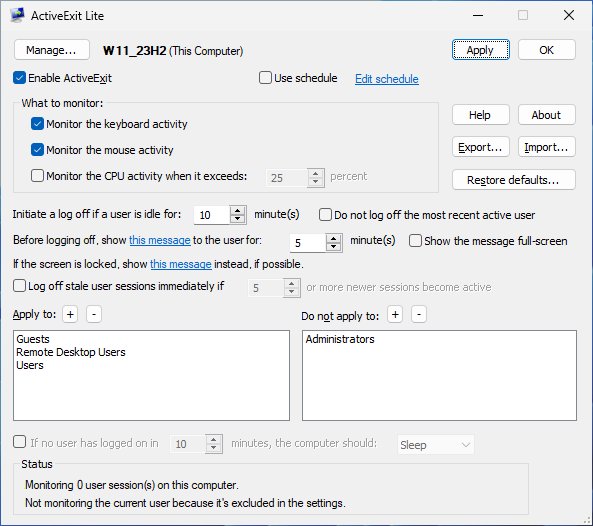
Press this button to select what to manage, This Computer, or a GPO.
When managing This Computer, you can use this box to control the status of ActiveExit monitoring. If this box is checked, ActiveExit performs the job it's designed to do: it will log off the inactive users from their accounts, etc. If this box is cleared, ActiveExit stops monitoring the users on this computer. You can use this box to quickly enable or disable ActiveExit without having to uninstall it.
If you've selected to manage a GPO instead of This Computer, this box is replaced with a menu that lets you control the status of the GPO (Not Configured, Enabled, or Disabled.)
If this option is selected, Active Exit will be active only during the active hours specified by the schedule. It will not log off the users during the hours marked as inactive on the schedule.
If this option is not selected, Active Exit will ignore the schedule and will always be active.
Use this area to select the activities that ActiveExit should monitor. Normally, you would want to monitor the keyboard and the mouse activity, and you can also select to monitor the CPU activity exceeding the level of your choosing. This way, if the user is running a CPU-intensive program without touching the mouse or the keyboard, such a user would not be logged off by ActiveExit until the program stops and the CPU activity lowers below the threshold.
Use this box to specify how long the inactivity period should be. The inactivity period is the time during which no mouse or keyboard activity from the user has been detected, and the CPU activity level has not exceeded the threshold you've chosen. The valid values for the timeout are from 1 to 9999 minutes.
If this option is selected, then the last user who logged on to the computer (or unlocked the screen) would not be logged off by Active Exit even if the idle timeout has been reached. For example, if users A, B, and C log on to the computer one after another, then the users A and B would be logged off when their idle time exceeds the timeout, but the user C would be kept logged on, even if the screen is locked or the idle timeout has been reached. Note that if the user C logs off manually, it would not make user B the active user, unless user B logs back on before the idle timeout has been reached.
Use this box to specify how long a warning message should be displayed before actually logging off the user. Enter 0 is you don't want any message to be shown to the user. You can also customize the text of the message by clicking on the link. If you want the message to contain the time remaining before the forced logoff, use the placeholder %d within the message text to indicate where the remaining time should apprear.
This option causes the warning message to be displayed full-screen, in front of other windows that might be present on the screen. You may want to enable this option if your users might be using a full-screen application (such as a video player) that might prevent a regular message from being visible.
Use this link to specify an alternative text of the warning message displayed to the user, if the user has locked the screen before the idle timeout has occurred.
Note that the warning message is displayed only if the user is connected to the Windows session, such as when the user's desktop is visible to the user, or if the screen is locked and a prompt to unlock it is displayed to the user. If the user is disconnected from the session (which happens, for example, if the user has chosen the Disconnect or Switch User commands from Windows Start Menu), then the warning is NOT displayed and the logoff occurs immediately when the idle timeout is up.
Note also that when the screen is locked, it is NOT enough to press OK to dismiss the warning message displayed by ActiveExit; the user must actually unlock the screen and log back on to keep his or her session active.
If this option is enabled, then ActiveExit will limit the number of active user sessions to N. If a new user logs in to the computer without logging off the previous user (by using the Switch User command of Windows, for example), and it makes the number of active user sessions to exceed the specified number N, then ActiveExit will log off the oldest inactive user session without waiting for it to reach for its idle timeout. You may find this option useful if the computer has limited resources that cannot support more than N active user sessions.
The list of the user accounts and/or user groups which should be processed by ActiveExit. If this list is empty, then ActiveExit will process every user who logs in to the computer (unless excluded by the Do not apply to list. If this list is not empty, then only users who are in the list or who are the members of the groups listed will be processed by ActiveExit. (Also, see notes below.)
To add a group or a user to the list, press the [+] button above the list. To remove an item from the list, select it and then press the [-] button above the list.
The list of the user accounts and/or user groups which should NOT be processed by ActiveExit. If this list is empty, then ActiveExit will not exclude any user or group from processing. If this list is not empty, then ActiveExit will not monitor users or members of the groups listed. (Also, see notes below.)
To add a group or a user to the list, press the [+] button above the list. To remove an item from the list, select it and then press the [-] button above the list.
(This option is available only on computers running Windows Vista or later. If is not available on Windows XP computers.)
If this option is enabled, then ActiveExit will watch for the condition when no user is logged on to the computer. (Such a condition occurs before the first user logs in, or after the last user logs out of Windows.) ActiveExit will wait for the specified number of minutes for another user to log in to Windows. If no user logs in during that time, ActiveExit will shut down or suspend the computer, according to the option selected.
Note that the mouse, the keyboard, or the CPU activities during the wait do not affect the waiting time. In order to prevent the shutdown or suspend of the computer, one must actually log in to Windows before the timeout expires.
This area is used by ActiveExit to display its status.
Press this button to export the current settings of ActiveExit into a file.
Press this button to import the settings of ActiveExit from a file (created previously with the Export command).
You may want to use the Export and Import commands to simplify the configuration of several computers: Instead of setting up each computer individually, you can export the settings from one computer, and then import them from the file on other computers, to make them configured in the same way as the first computer.
Press this button if you want to return ActiveExit to the state as it was when you first installed it, before you made any changes to its configuration.
Press this button to save the current settings, without closing the configuration window. Note that the saved changes become effective only after a user logs off and then logs back on to Windows.
Press this button to save the current settings and close the configuration window. Note that the saved changes become effective only after a user logs off and then logs back on to Windows.
Press this button open the User's Guide of ActiveExit.
Press this button to display the version number and copyright information for ActiveExit. You can also use it to enter your business license key, check your license for validity, etc.
When deciding whether to monitor a specific user or not, ActiveExit only takes into account the groups the user is actually a member of, as listed on the Member of page of the user's Properties window (available through the Computer management utility of Windows ):
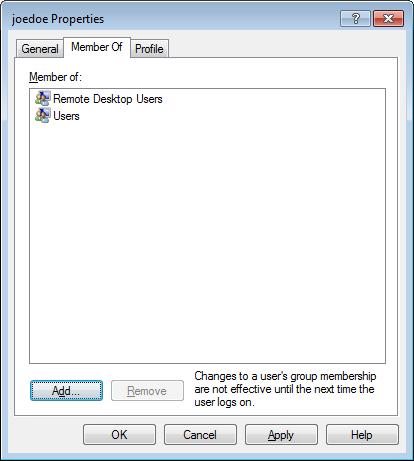
While some group memberships are implied (for example, every user is implied to be a member of the Everyone group), such implied memberships are NOT considered by ActiveExit. To reiterate, if you add a user group to the Apply to or Do not apply to lists of ActiveExit, that group will take effect only if it's explicitly listed on the Member of property page of the user.
If the user logs in to a domain, then both the global and the local group membership is checked by ActiveExit. Keep in mind that Windows may map the global groups to the local groups automatically. For example, if a user is a member of the global group Domain Admins, such a user also automatically becomes a member of the local group Administrators, even if Administrators does not appear on the user's Member of property page.
The Do not apply to list takes precedence of the Apply to list. That is, if a user matches the Do not apply to list, then ActiveExit will not process such a user, even if it also matches the Apply to list.
The decision whether to monitor a user or not is normally made by ActiveExit only when the user logs on to the computer. If you make a change to the list of users or groups that ActiveExit should process, such a change will only take effect next time the affected user logs on to the computer. If you need the changes to take effect immediately, restart the ActiveExit service.
If you run ActiveExit on a computer that is managed via a GPO, it lets you see the current options, but it does not let you change them:
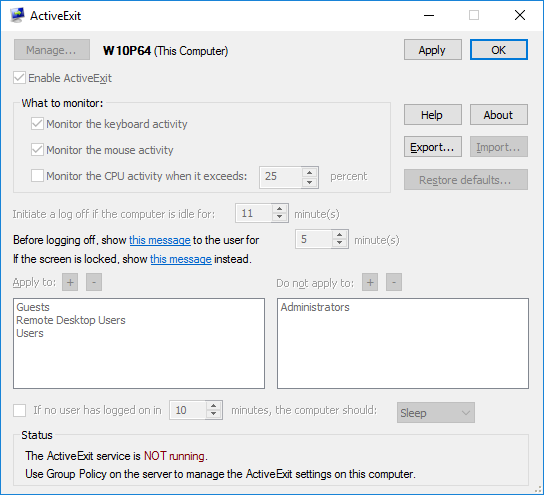
This situation occurs because the computer is managed from the server, by applying the changes to the GPO. To change the settings, make the changes to the GPO on the server, and then issue gpudate on the client.

 Copyright © 2026, WinAbility® Software Corporation
  . All rights reserved